
Gift Cards
Overview
Gift cards are prepaid vouchers sold to customers, redeemable later as a payment method at checkout. Reusable gift card templates are defined first, then instances of them are sold with a real code and balance.
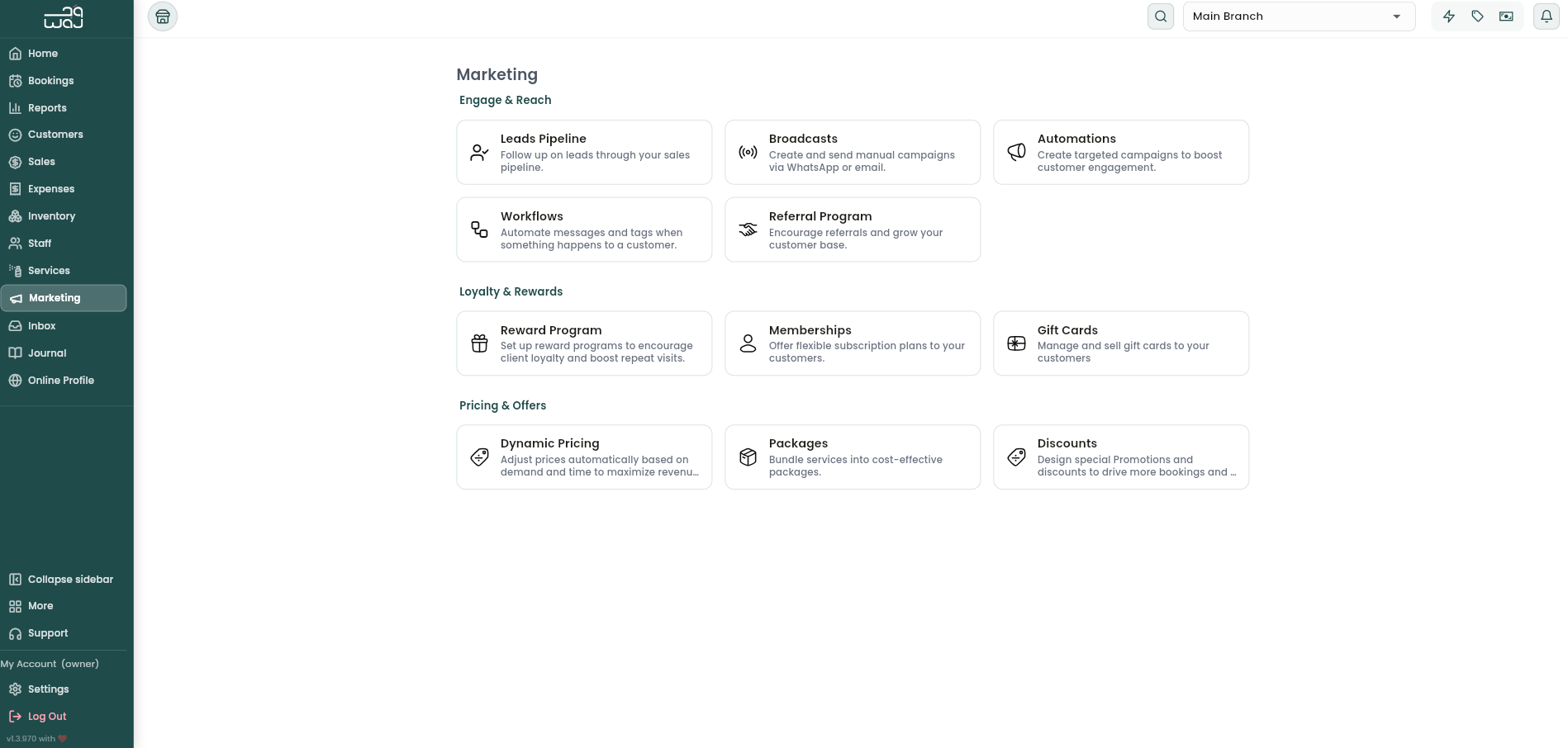
Where to find it
Marketing → Loyalty & Rewards → Gift Cards.
Creating a gift card template
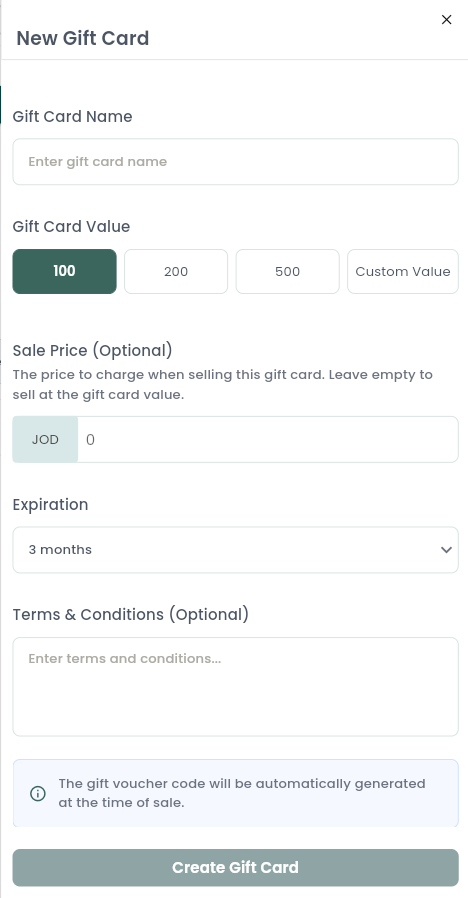
- Gift Cards → Create Gift Card.
- Set a name and a value — quick presets (100 / 200 / 500) or a Custom Value.
- Optionally set a Sale Price: the price to actually charge when selling this card. Leave it empty to sell at face value.
- Choose a validity: 1 / 3 / 6 / 9 / 12 months, or No expiration.
- Optionally add Terms & Conditions.
- Save — the template is now available to sell. A permanent "Custom Amount" tile is always available too, letting an ad-hoc card be sold at any amount without a template.
Selling a gift card
- From the template, choose Sell — also available directly from checkout ("Add new gift card to sale").
- Confirm or adjust the Selling Price and the Credit Value it will carry — these can differ, allowing a promotion to run (e.g. sell a card worth 100 for 80, or throw in a bonus so a customer paying 100 gets 120 of credit). If they differ, the card shows a bonus or discount badge summarizing what the customer pays vs. receives.
- Pick an image design for the card.
- Optionally fill in gift details — sender name/email/phone, recipient name/email/phone (with a "sender is same as recipient" shortcut), and a personal message, useful if the card is a gift for someone else.
- Choose the validity and add it to the cart — it's paid for at checkout like any other item. A sale can only include one gift card at a time.
- The card is issued with a unique code, generated automatically at the moment of sale. Delivery isn't automatic — from the sold card's details, use the resend action to email or WhatsApp the code and gift details to the recipient whenever ready.
Redeeming a gift card at checkout
- During Payment, enter or scan the gift card code.
- The app validates it live, rejecting codes that are invalid, expired, already fully used, or not found, and shows the available balance.
- Applying it deducts the amount used from the card's balance and credits that amount toward the sale total — only as much as is owed gets deducted, and any leftover balance stays on the card for a future visit.
- Every use is recorded in the card's transaction log (Sold / Redeemed / Expired / Refunded entries with the balance before and after), so it's always possible to see exactly when and how much was spent.
- A sale paid entirely with a gift card is treated as VAT-exempt — the VAT was already accounted for when the card itself was originally sold.
A gift card's balance can also be converted entirely into a customer's account store credit/balance in one step, if that's preferred over managing it as a standalone code.
Business rules & calculations
- A gift card has an original amount (its face value/credit), a balance (what's left to spend), and a sale price (what the customer actually paid, which can be discounted or bonused as a promotion). Selling it for less than its value doesn't reduce the balance the customer can redeem — they still get the full credited value to spend; selling it for a bonus similarly credits more than was paid.
- Redemption always reduces the balance, never the original value — the original value stays a fixed reference point for reporting the promotional discount/bonus.
- A card's effective status is Active (has balance, not expired), Partially Used (some balance spent, some remaining), Fully Used (balance is zero), or Expired (past its validity date), on top of the template-level Active/Inactive switch that controls whether it's still sellable going forward.
- Refunding a sale does not restore a gift card's balance if it was used as payment — only voiding does.