
Creating a Booking
Overview
A booking captures a customer's appointment: the customer, one or more services, the assigned staff, the date and time, and any notes. Creating and managing bookings requires the appropriate permission on your account — if you don't see these options, check with your manager.
Starting a new appointment
You can start a booking several ways: tap an empty slot on the calendar and choose Create Booking, use + New from Table view, tap the button on an empty calendar state, convert a waitlist entry, or start from a customer's profile.
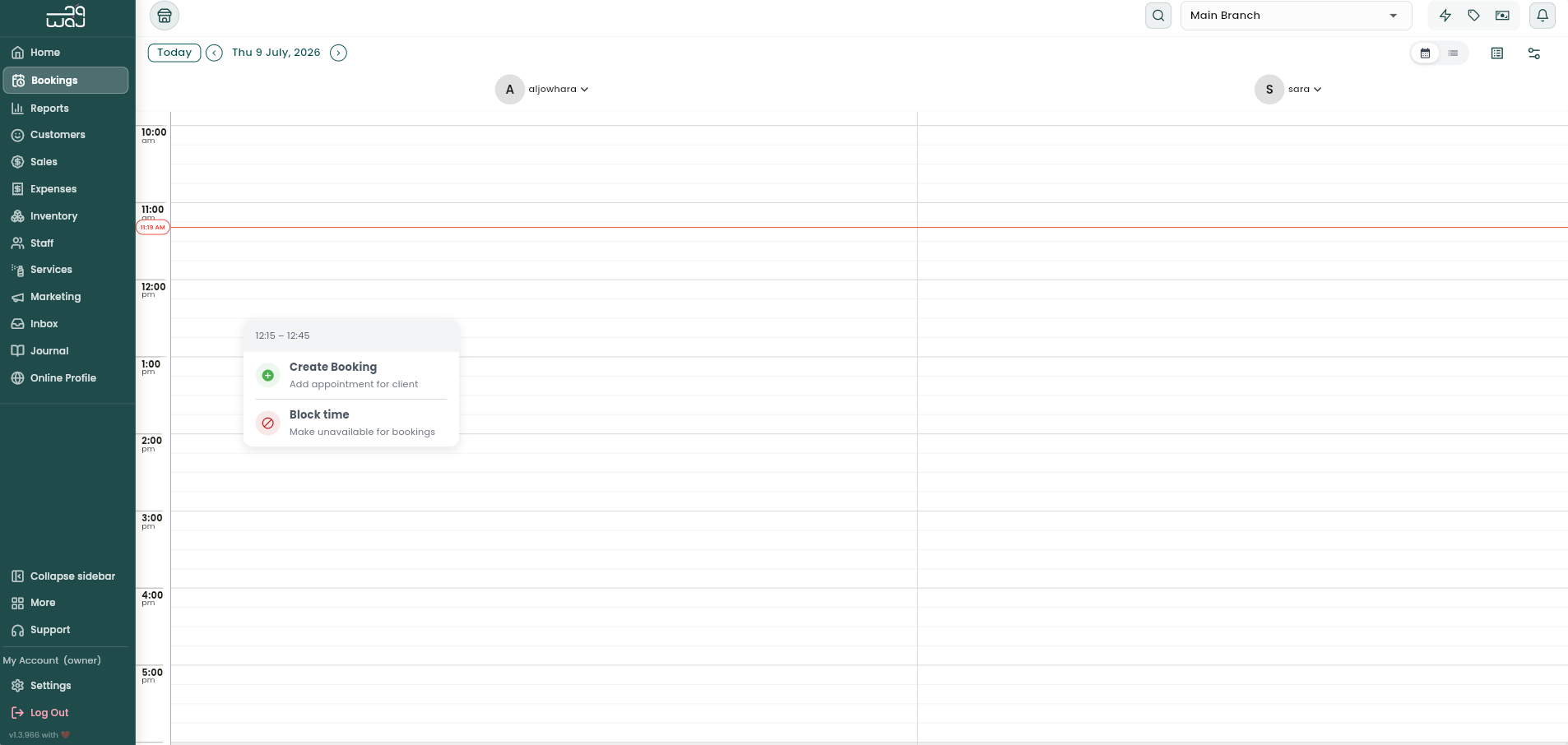
Steps
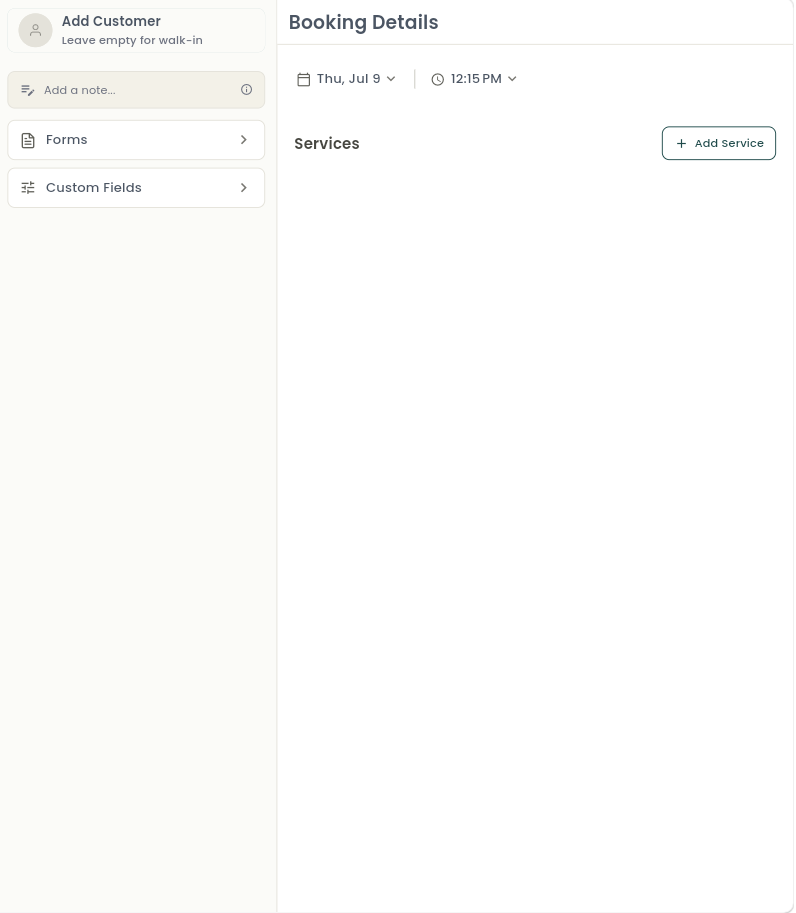
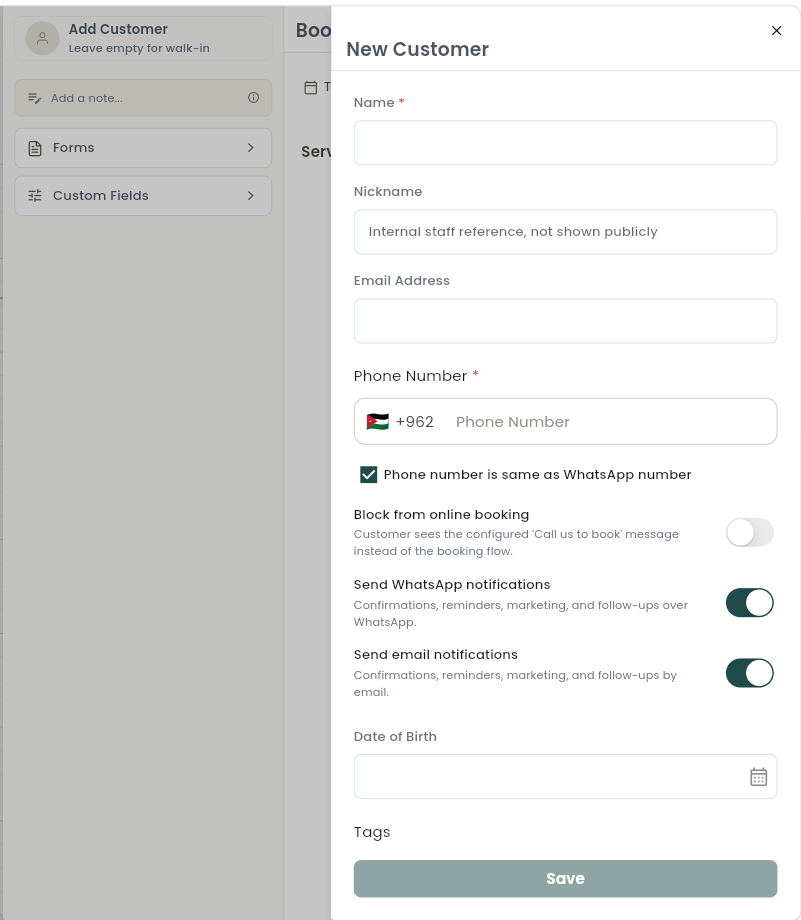
- Choose the customer. Search existing customers or add a new one on the spot. You can also add a walk-in without capturing full details. If a customer has unpaid balances, a warning icon shows how many pending payments they have. Searching a phone number with no matches lets you create a new customer pre-filled with that number.
- Set the date and time. This can be adjusted any time before the appointment is checked out.
- Add notes. You'll see space for booking-specific notes as well as any notes already saved on the customer's profile.
- Choose services. Search, browse by Packages, or browse services grouped by category. Long-press to select multiple services, then Confirm Selection. Adding a package brings in all of its included services automatically, respecting whether they run at the same time or one after another. Each service is auto-assigned to a staff member who offers it at this branch (deactivated staff are never auto-assigned) — tap any service afterward to change the staff, duration, price, or apply a discount. If a dynamic pricing rule applies to the chosen time, the adjusted price is applied automatically.
- Check AI recommendations. Based on the customer's history, you may see suggested services, packages, products, or memberships — add any with one tap.
- Review the total. The bottom bar shows total duration and total price (seeing the price requires checkout permission), plus a badge if no-show protection applies to this booking.
- Save, or tap Checkout to save the appointment and move straight into taking payment.
Notes & limitations
Every edit after saving (staff reassignment, price change, customer swap, duration change, services added or removed) is recorded in the appointment's activity history. To set up a repeating series or make a quick follow-up appointment, see Managing, Editing, and Cancelling Bookings.