
Branches and Multi-Location Setup
Overview
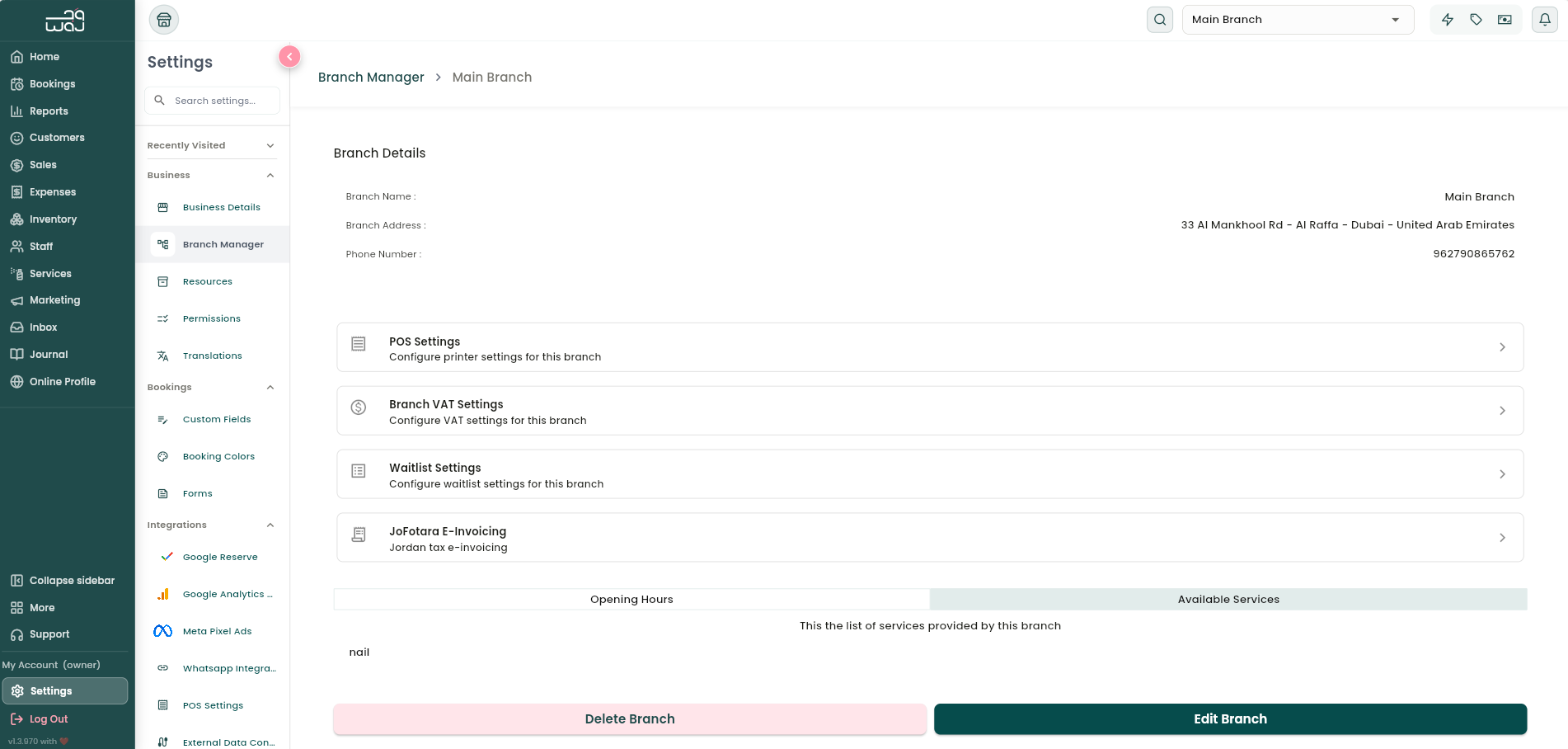
If you run more than one location, Branch Manager is where you manage each one — contact details, which services are offered, and location-specific settings. Branch Manager shows each branch as a card with its name and address.
Where to find it
Settings → Business branch → Branch Manager.
Adding or editing a branch
- Branch name (required).
- Address — tap to pick a location on the map, or type it in manually.
- Phone number.
- WhatsApp number, with an "Activate WhatsApp Business Profile link" checkbox so customers can message the branch directly from your online profile.
- Google Business Profile link — showcases your Google reviews on your online profile (there's an in-app guide showing you where to find this link).
Opening hours and which services are available at the branch are set from dedicated buttons on this same form — see Business Hours and Branch-Specific Settings.
Tap Save to create or update the branch. Delete Branch removes it entirely, with a confirmation — this is an owner-only action.
Notes & limitations
A staff member only sees and works at the branch(es) they've been assigned to. A separate "Access other branches" permission controls whether staff can browse branches outside their own assignment.