
Home Dashboard
Overview
Home is the business's daily control center — a quick read on how things are going today, this week, and beyond. It's different from the Calendar, which is for managing individual appointments; Home is for checking overall performance. If the account has the "View sales report" permission, Home is one of the main navigation destinations; without it, staff land on the Calendar instead, since Home is built around business performance data. On mobile, a close (X) button in the Home header returns to the main navigation bar.
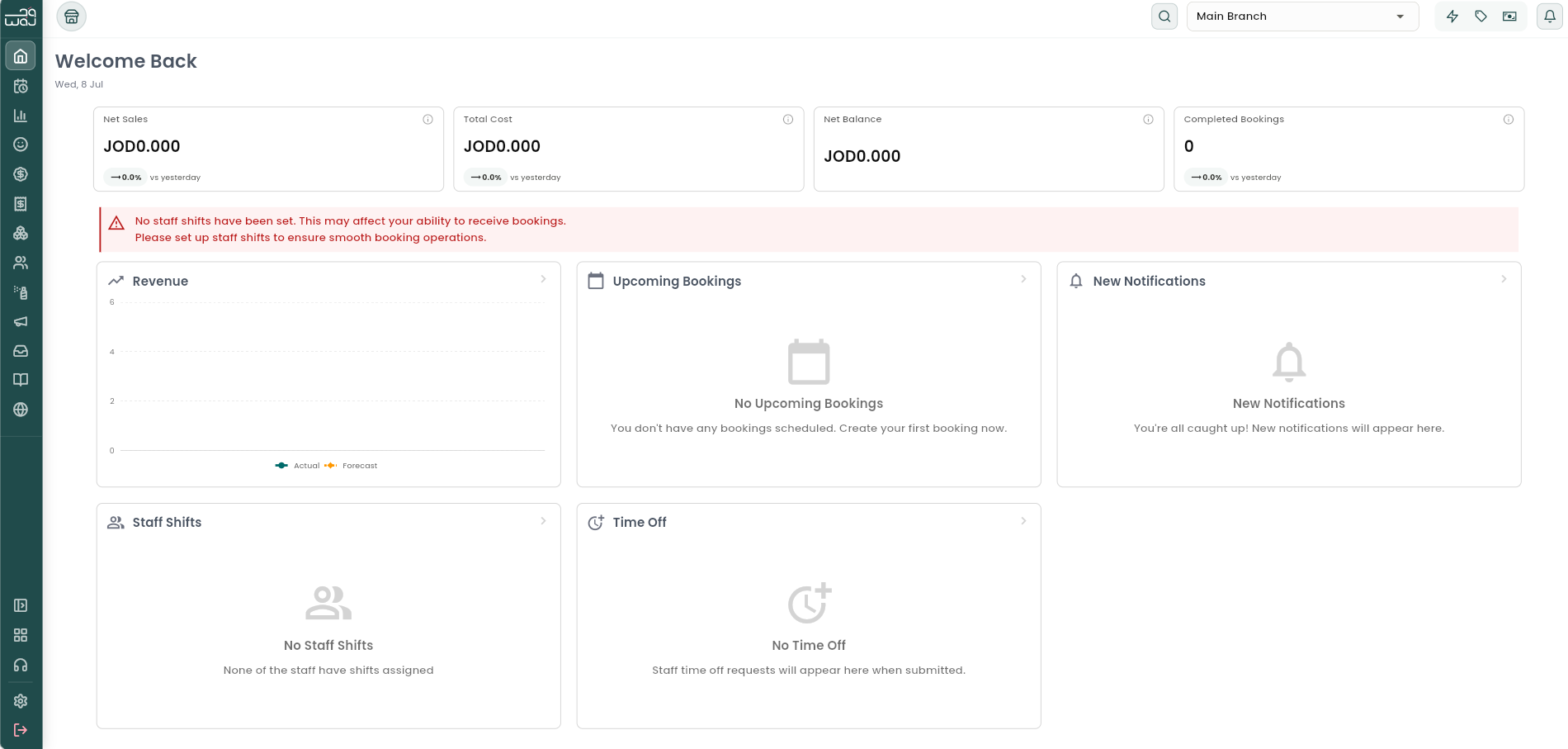
KPI summary tiles
With the "Access other staff members' report" permission, four tappable tiles sit at the top of Home. Each shows a number for the period, a comparison to the previous period, and a tooltip with more detail:
- Net Sales — services, products, and membership sales combined, minus discounts. Opens the Business Performance report.
- Total Cost — procurement costs, staff payments, and expenses added together. Opens the Financial Overview.
- Net Balance — total revenue minus total cost. Also opens the Financial Overview.
- Completed Bookings — number of completed appointments, with a breakdown of completed, cancelled, and no-show. Opens the full Booking Reports.

Dashboard cards
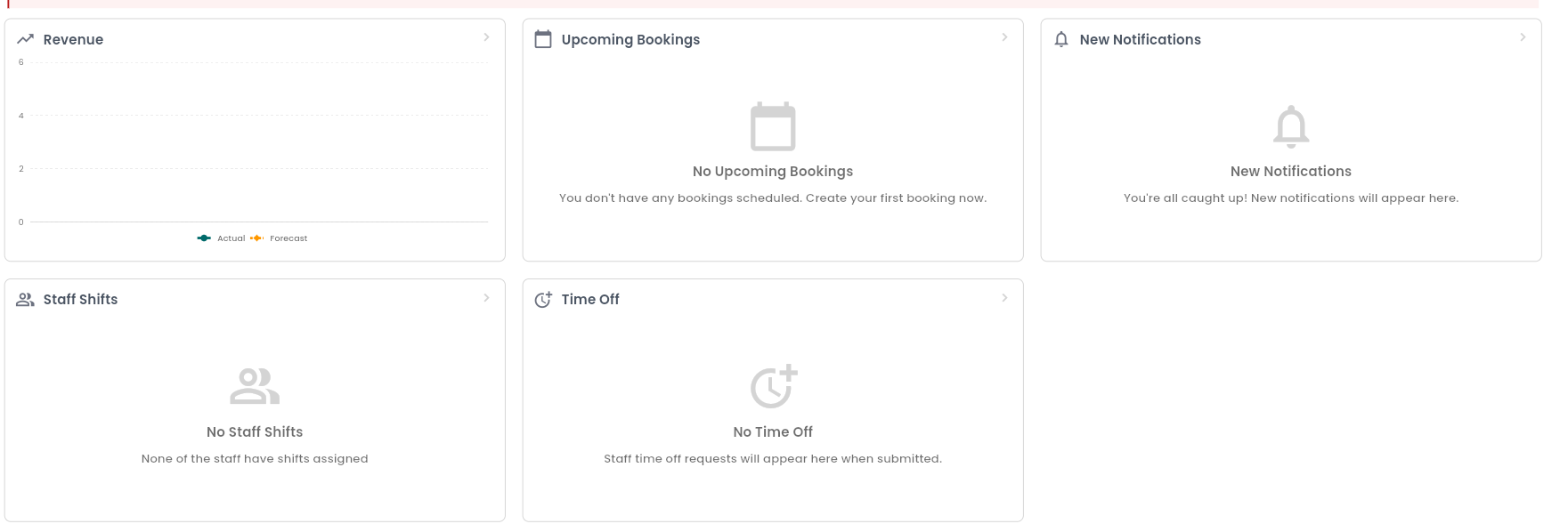
Below the tiles, a grid of cards gives an at-a-glance view of the day and week ahead:
- Revenue — actual revenue over the last 7 days plus a short forecast for the next 2. Opens the Financial Overview.
- Expenses — expenses over the last 7 days. Opens the Financial Overview. This card only appears once there is expense data to show.
- Upcoming Bookings — next appointments with staff avatars. Opens the Calendar.
- New Notifications — most recent notifications. Opens the notification history.
- Staff Shifts — who's scheduled or clocked in today. Opens Attendance.
- Time Off — recent staff time-off requests. Opens Staff.
If a card would otherwise be empty (no upcoming bookings, no notifications, no time-off requests), a friendly message shows instead of a blank box. Everything on Home reflects the currently selected branch, so switching branches refreshes the numbers for that location. If no staff members have a shift scheduled for today, Home shows a staffing warning.
Demo data
New WAJ accounts come pre-loaded with sample customers, bookings, and sales so the app can be explored before adding real data. While that sample data is in place, a "You're viewing demo data" banner stays pinned above Home (and above the Calendar). To go live with real data: tap Clear demo data, then confirm on the "Clear demo data?" prompt. This removes the sample customers, bookings, sales, and inventory that came with the account — real data already added is kept, and the action can't be undone. A confirmation message appears and the banner disappears for good.
Notes & limitations
The KPI tiles require "Access other staff members' report" in addition to Home being visible at all ("View sales report"). Home always reflects the currently selected branch.